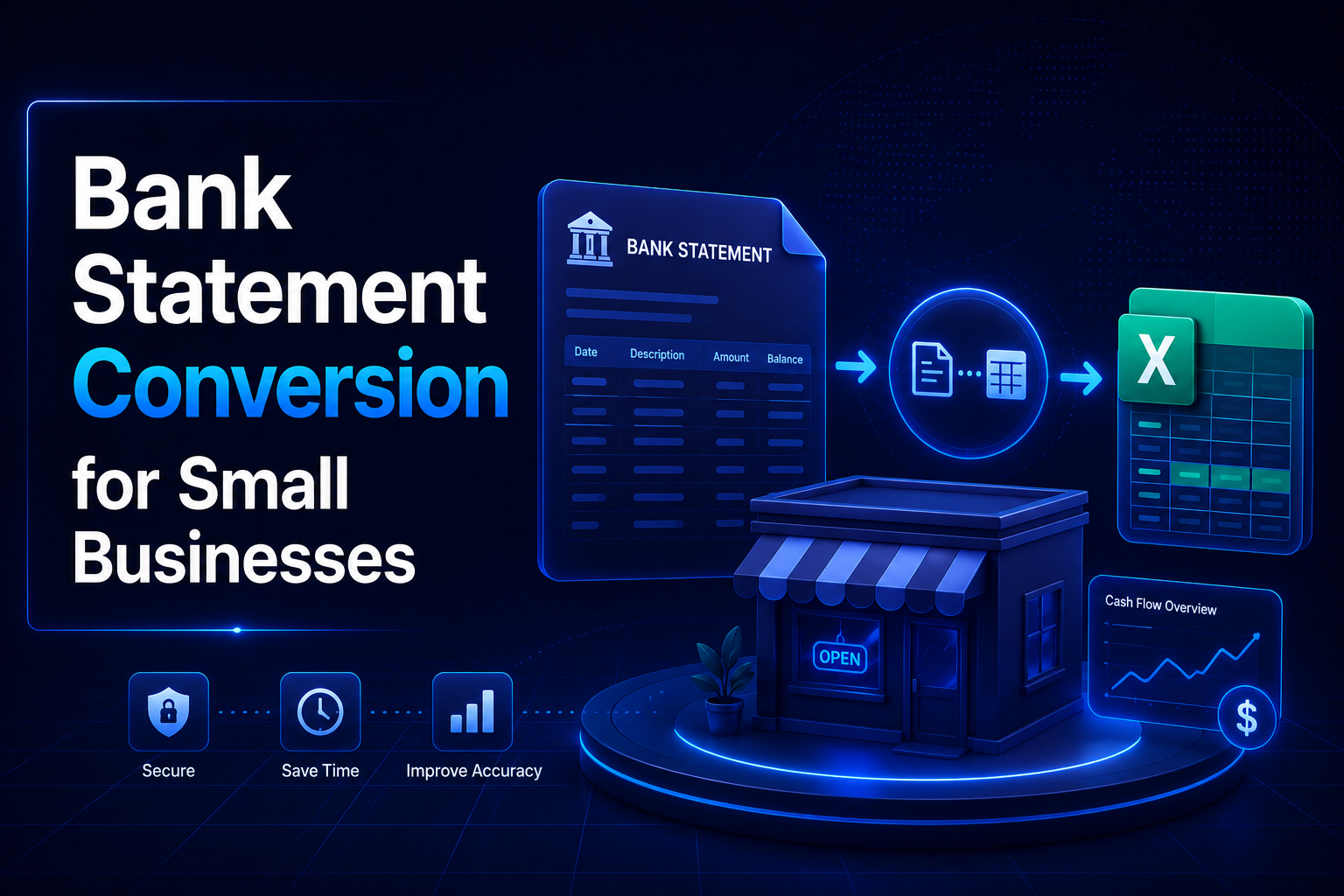
Bank statements are one of the most information-dense documents a small business produces every month. Every credit reveals a client payment, every debit reveals an expense, and the running balance tells you exactly where your cash position stands at any moment. Yet this information arrives in a format — typically a password-protected PDF — specifically designed to be read by humans, not processed by software.
For most small business owners, this creates a recurring bottleneck: the data they need to run their business is locked inside a document they cannot easily analyse, filter, or import into their accounting software. They either spend hours manually re-entering data, struggle with incomplete copy-paste results, or hand raw PDFs to their CA and hope for the best.
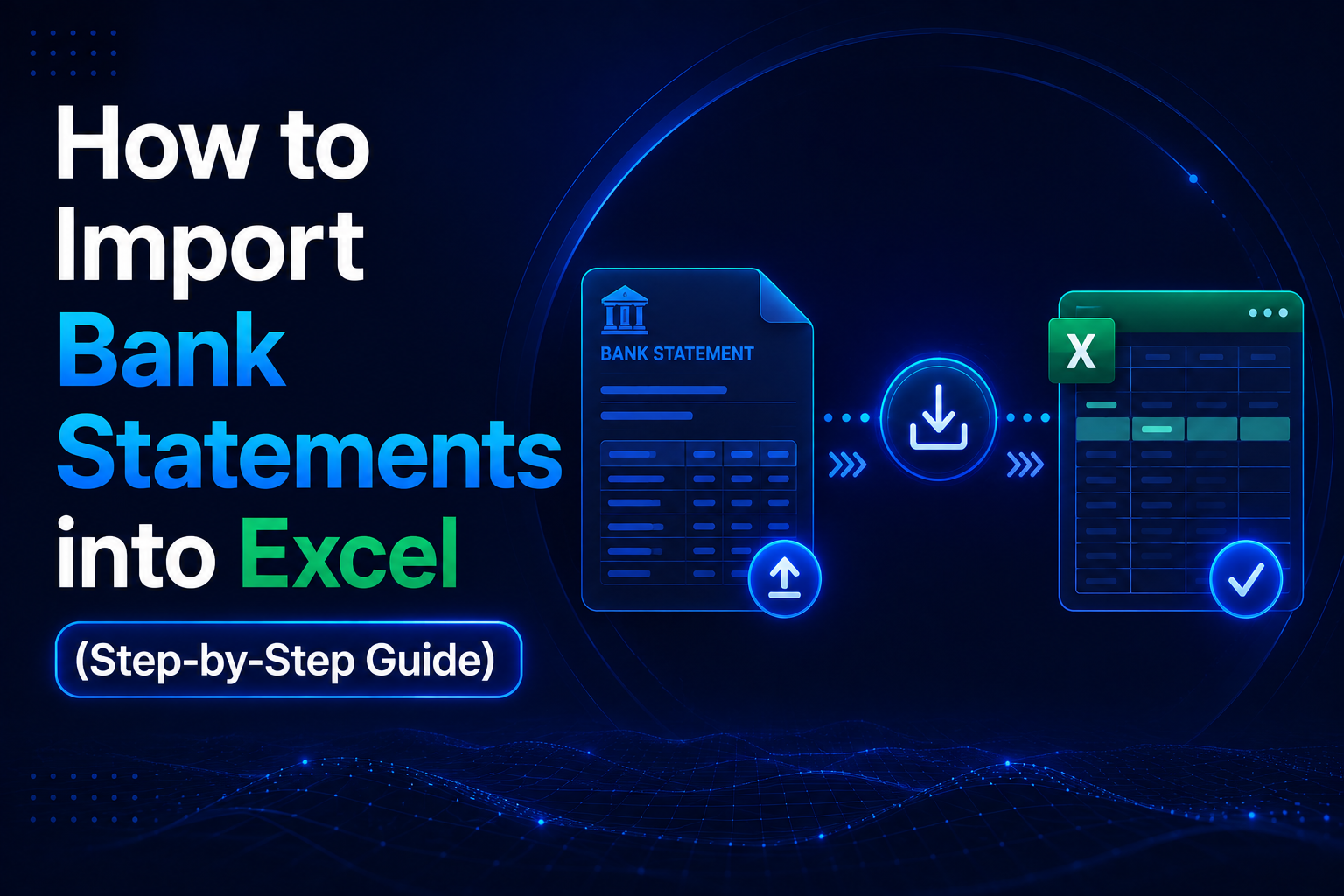
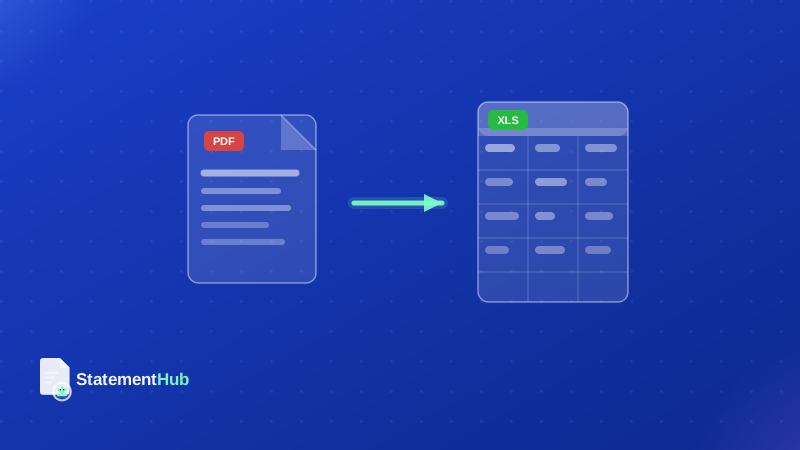
Bank statement conversion bridges this gap. It extracts the structured transaction data from your PDF and produces a clean Excel or CSV file that you can analyse directly, import into QuickBooks, Xero, or Zoho Books, or share with your accountant in a format that saves them significant time. This guide covers the complete picture — the problems, the tools, a repeatable monthly workflow, and the security practices that keep your financial data safe.
Problems Small Businesses Face with Bank Statement Data
Small businesses have a specific relationship with bank statement data that differs from both individuals and large enterprises. Individuals have simple statements; large enterprises have dedicated finance teams with ERP systems that connect directly to bank feeds. Small businesses sit in between — enough transaction volume to make manual handling painful, but without the infrastructure to automate it.
- Multiple bank accounts: A typical small business has a current account for day-to-day operations, a savings account, and often a separate salary account, GST collection account, or project-specific account. Managing multiple PDFs across multiple banks adds up quickly — and the accounts are rarely at the same bank, so the PDF formats differ.
- High transaction volume: An active current account processes 300–600 transactions per month — supplier payments, customer receipts, UPI transfers, EMI payments, utility bills, GST payments, and vendor advances. At that volume, manual data handling is not just slow — it is unreliable. Even a 1% error rate means 3–6 wrong entries every month.
- Reconciliation deadlines: Monthly GST filings (GSTR-1, GSTR-3B), quarterly advance tax, and annual ITR filings all depend on reconciled bank data. Delays in processing bank statements cascade directly into compliance delays — and the penalties for late filings are real.
- CA and accountant handover: Most small businesses work with an external CA or bookkeeper who needs to process bank data. Sending PDF statements creates friction — they must convert the data themselves. A clean Excel file cuts their processing time significantly, which often reflects in reduced fees and faster turnaround.
- Cash flow forecasting: Banks show you the past; cash flow models show you the future. Building a forward-looking cash position model requires your historical bank data in a structured format you can work with — pivot tables, trend charts, and running totals are impossible in a PDF.
Indian SMEs spend an average of 4–6 hours per month on manual bank data handling. Systematic bank statement conversion reduces this to under 30 minutes — freeing time for higher-value work like forecasting, client follow-up, and strategic planning.
Why PDF Bank Statements Are Difficult to Work With
PDF was designed in 1993 for one purpose: ensuring that documents look identical regardless of the device or printer used to display them. Every character in a PDF is placed at specific x-y coordinates on a canvas. There is no concept of a "column" or a "row" — just positioned text. When software tries to extract data from a PDF, it must reverse-engineer structure from positional information alone, which is both computationally complex and error-prone.
Multi-Page Statements and Repeated Headers
A month of transactions for an active current account often spans 5–15 pages. When you copy and paste from a multi-page PDF, the column headers (Date, Narration, Debit, Credit, Balance) repeat on every page and appear in the pasted output, contaminating your data. Cleaning this out for a 10-page statement means manually deleting dozens of spurious header rows — and missing even one corrupts any formula that counts or sums the data.
Different Formats for Every Bank
SBI, HDFC, ICICI, Axis, Kotak, Yes Bank — each uses its own PDF layout for bank statements. Column widths differ, date formats differ (DD/MM/YYYY vs MM-DD-YYYY vs "03 Aug 2026"), debit and credit amounts may appear in separate columns or combined in one column with a Cr/Dr suffix. A process that works for your HDFC statement breaks completely on your Axis statement.
Password Protection
Indian banks routinely issue PDF statements with password protection, typically using your date of birth (DDMMYYYY format) or a bank-assigned PIN. Before any conversion can begin, you must handle the password — entering it manually each time or, for some workflows, temporarily removing it. Many generic conversion tools cannot handle password-protected files and simply fail silently.
Scanned Statements
Statements for older periods, or statements issued before banks adopted programmatic PDF generation, may be scanned image PDFs rather than searchable text PDFs. A scanned PDF is literally a photograph of a printed page — there is no extractable text, only pixels. These files require OCR (optical character recognition) before any data extraction can happen, which adds processing time and introduces recognition errors that must be corrected.
Multi-Line Narrations
Indian bank statements frequently have narration fields that wrap across two lines — a UPI reference number on the first line, the merchant name on the second. Copy-paste methods either collapse these into a single string or split them across two separate rows, corrupting the transaction structure. For NEFT and RTGS transactions, the narration often contains critical reference information that becomes unusable if the structure is broken.
Never double-click a bank statement CSV to open it in Excel. This triggers Excel's auto-detection logic which silently corrupts account numbers (treated as scientific notation), reference codes, and dates. Always use the Data > Get Data > From Text/CSV import wizard instead, which gives you control over column data types.
Benefits of Converting Bank Statements to Excel
Once your bank statement data is in a properly structured Excel file, it transforms from a static record into an active financial tool. Every Excel feature that was previously inaccessible — because the data was locked in a PDF — becomes immediately available:
| Excel Feature | What It Enables for Your Business |
|---|---|
| AutoFilter | Filter by date range, narration keyword, or amount — find every payment to a specific vendor in one click |
| SUMIF / SUMIFS | Total all debits in a category (e.g., all rent payments, all GST payments) across any date range in seconds |
| Pivot Tables | Build a month-by-month income and expense summary in under two minutes — no formula required |
| VLOOKUP / XLOOKUP | Match bank credits against your invoice list to identify which invoices have been paid and which are outstanding |
| Conditional Formatting | Highlight unusually large debits, duplicate amounts, or transactions above a threshold automatically |
| Power Query | Combine 12 months of converted statements into a single table and refresh it each month with one click |
| Charts | Visualise cash flow trends, monthly revenue seasonality, or expense category breakdown with built-in chart types |
| CSV Export | Feed clean, structured data directly into QuickBooks, Xero, Zoho Books, or Tally — eliminating all manual re-entry |
For reconciliation specifically, having bank data in Excel transforms the process. You can sort both your accounting records and your bank data by date and amount, use XLOOKUP to auto-match entries, and surface unmatched items in seconds. What used to take a weekend afternoon consistently takes under 20 minutes once the data is properly structured.
Indian banks like HDFC and ICICI offer CSV downloads from their net banking portals. However, these CSVs frequently have inconsistent date formats, merged debit/credit columns, or encoding issues that cause import errors downstream. AI-based bank statement conversion normalises all these inconsistencies and produces a clean, standardised Excel output regardless of the source bank or format.
Importing Bank Data into Accounting Software
For most small businesses, the final destination for bank data is not Excel — it is accounting software. Here is how bank statement conversion fits into the three platforms most widely used by Indian small businesses:
QuickBooks Online
QuickBooks Online accepts bank statement imports in CSV format with four required columns: Date, Description, Amount (or separate Debit and Credit columns), and optionally Balance. Once uploaded, QuickBooks applies its auto-matching rules — attempting to match each imported transaction against existing invoices, bills, and contacts in your books.
- Convert your bank statement PDF to Excel using StatementHub
- In Excel, go to File > Save As and select CSV (Comma delimited) as the format
- In QuickBooks, navigate to Banking > Banking > Upload Transactions
- Select the bank account and upload the CSV file
- Map CSV columns to QuickBooks fields: Date, Description, Amount
- Review matched transactions — approve correct matches, re-categorize incorrect ones
- Run a reconciliation report to confirm the import is complete and balanced
Xero
Xero accepts bank statement imports in OFX, QFX, QIF, and CSV formats. For CSV import, the required columns are: Date, Payee, Description, Amount, and optionally Reference. Import via Accounting > Bank Accounts > select account > Import a Statement.
Xero's bank reconciliation interface presents each imported transaction alongside suggested matches from your chart of accounts — making it fast to approve correct auto-matches and redirect mis-matched ones. For businesses with high invoice volume, Xero's matching algorithm is particularly effective when narration text is clean and structured.
Zoho Books
Zoho Books accepts CSV imports with columns: Date, Description, Debit, Credit, and Balance. This format matches the StatementHub output exactly — no column rearrangement or reformatting required. Import via Banking > select bank account > Import Statement > Upload CSV.
Zoho Books also offers a direct bank feed for some Indian banks (ICICI, Kotak), but the coverage is incomplete and feeds sometimes have delays. CSV import from converted statements gives you more control over timing and data quality — particularly useful when you need to reconcile before a GST filing deadline.
Regardless of which platform you use, the quality of auto-matching improves significantly when transaction narrations are clean and consistently structured. AI-based conversion preserves the original narration text accurately, including UPI reference IDs, NEFT codes, and merchant names — all of which accounting software uses for matching. Copy-paste methods that corrupt narrations reduce match quality and increase manual categorization work.
Building a Monthly Conversion Workflow
A repeatable monthly workflow turns bank statement conversion from an irregular task into a predictable routine. Here is a practical workflow for a small business with 2–4 bank accounts:
Week 1 — Download and Convert (First Week of Each Month)
- Log in to each bank's net banking portal and download the previous month's statement as a PDF. Set the date range to the full previous calendar month.
- Verify each PDF before converting: confirm it opens correctly, check the date range covers the full month, and note the transaction count shown in the statement summary page.
- Open StatementHub and convert each PDF to Excel. Processing takes 30–60 seconds per statement regardless of length or number of pages.
- Spot-check each converted file: verify the row count matches the PDF summary, check 5–10 random transaction amounts against the original PDF, and confirm the opening and closing balances match.
- Save each file with a consistent naming convention:
YYYY-MM_BankName_AccountLast4.xlsx. For example:2026-07_HDFC_4521.xlsx. - Export each file as CSV and import into your accounting software (QuickBooks, Xero, or Zoho Books) using the steps in the previous section.
Week 2 — Reconcile and Report (Second Week of Each Month)
- In your accounting software, run a bank reconciliation report for each account. This shows which imported bank transactions have been matched to accounting entries and which remain unmatched.
- Review auto-categorized transactions and correct any mis-classifications — especially for new vendors or expense types the software has not encountered before.
- Investigate unmatched entries. Common causes include bank charges and interest credits (which may not have corresponding bill entries), and transactions that exist in the bank feed but were not entered into your books.
- Once reconciliation is complete, generate a monthly P&L and cash flow summary from the software.
- Share the reports with your CA, business partner, or management team. If you share a cloud storage folder, add the month's files there rather than sending email attachments.
Create a shared folder (Google Drive, OneDrive, or Dropbox) with the structure BankStatements/YYYY/BankName/. Store both the original PDF and the converted Excel file in each subfolder. This creates a complete audit trail and makes CA handover trivial — share the folder link once, update it monthly, and your accountant always has access to the latest files without any email back-and-forth.
Security Considerations for Bank Statement Conversion
Bank statement data is among the most sensitive information your business handles. A single month of bank records reveals your revenue, your vendor relationships, your payroll structure, your credit commitments, and your exact cash position at every point during the month. Handling it carelessly creates real business risk — both from data exposure and from the reputational damage that follows if sensitive financial information is leaked.
The Risk with Server-Side Conversion Tools
Most PDF conversion services work by uploading your file to a remote server, processing it there, and returning the converted result. This means your bank statement — with all the financial intelligence it contains — is transmitted over the internet and processed on servers you do not control. Even if the provider is reputable and their security practices are sound, you are exposing sensitive data to a third party unnecessarily. Their breach is your problem.
Client-Side Processing: The StatementHub Approach
StatementHub is built around a client-side architecture. The AI model that reads and converts your bank statement runs entirely within your browser using local computation. Your PDF is never transmitted to any server. You can verify this by opening your browser developer tools (F12 > Network tab) while running a conversion — you will see no outbound network requests carrying your statement data.
- Never upload bank statement PDFs to generic file conversion websites, PDF merge tools, or online OCR services
- Store statement PDF passwords in a password manager (Bitwarden, 1Password, or Google Passwords) — not in plain text documents or email drafts
- Store converted Excel files in encrypted cloud storage — Google Drive, OneDrive, and iCloud Drive all encrypt data at rest by default
- Set explicit sharing permissions on your statement folder — only people who genuinely need access should have it; revoke access when team members leave
- Enable two-factor authentication on your bank's net banking portal and on your cloud storage account
- Rotate your net banking password annually and enable alerts for any login from a new device
If a conversion tool requires you to create an account before converting, it is almost certainly storing your uploaded files — either temporarily for session management or permanently for service improvement. For bank statement data, always use tools that process locally without requiring a login. StatementHub operates this way by default.
Frequently Asked Questions
Can I convert bank statements from any Indian bank?
StatementHub supports 50+ Indian banks including SBI, HDFC, ICICI, Axis Bank, Kotak Mahindra, Yes Bank, Bank of Baroda, Punjab National Bank, IDFC First, Federal Bank, South Indian Bank, and more. The AI model reads each statement's layout dynamically rather than using bank-specific templates, which means it handles format variations and layout changes automatically without requiring manual configuration.
What if my statement runs across many pages?
Page count does not affect conversion quality or speed significantly. StatementHub processes the entire document as a unit and correctly assembles transactions from all pages, handling repeated headers and page breaks automatically. A 25-page statement with 600 transactions converts in the same 30–60 seconds as a 3-page statement with 40 transactions.
How many months of statements can I process at once?
StatementHub processes one PDF at a time. For full-year data, convert each month's statement individually and combine them in Excel. If you use Power Query (Data > Get Data > From Folder), you can set up a folder-based refresh that automatically consolidates all statements in a folder — add each new month's file and click Refresh to update the combined dataset.
My bank statement has multi-line narrations — will they be preserved correctly?
Yes. Multi-line narrations are a known challenge with Indian bank statements, particularly for UPI transactions where the payment reference appears on one line and the merchant name on the next. StatementHub's AI model reads the entire statement structure and correctly associates multi-line narrations with their single transaction row, preserving the full narration text in one cell.
Can I import the converted file directly into Tally Prime?
Tally Prime accepts bank statement imports via its Bank Reconciliation module. Navigate to Banking > Bank Reconciliation > Import Bank Statement and upload the CSV exported from StatementHub, then map the columns to Tally's expected fields (Date, Narration, Debit, Credit, Balance). Your CA may have a configured import template that makes this step even faster.
Is bank statement conversion legal in India?
Yes. Converting your own bank statement from PDF to Excel is legally equivalent to transcribing information from a document you own. There are no legal restrictions on format conversion of your own financial records. RBI guidelines on data storage and privacy apply to financial institutions, not to businesses or individuals processing their own account data. StatementHub's client-side architecture means your data never leaves your device, further ensuring privacy compliance.
What is the difference between a text-based PDF and a scanned PDF?
A text-based PDF contains actual, selectable text — you can click and drag to highlight transactions in the document. Most modern bank statements are text-based, generated programmatically by the bank's systems. A scanned PDF is a photographic image of a printed document — you cannot select or copy text from it. StatementHub handles both: text-based PDFs are processed directly; scanned PDFs go through an OCR step automatically before conversion.
Conclusion
Bank statement conversion is one of the highest-leverage finance tasks a small business can systematize. The effort required is minimal — 30 minutes per month, once the workflow is established — and the return is significant: accurate reconciled data, faster CA handover, cleaner accounting software imports, and the real-time financial visibility that small businesses need to make good decisions under pressure.
The three components that make the workflow reliable are a consistent tool (one that handles all your bank formats without manual configuration), a consistent process (download on the same day each month, spot-check before importing), and consistent storage (a well-organised folder structure that both you and your accountant can navigate without asking for files). Put these three things in place and the entire process runs on autopilot.
Start your first conversion now. Visit statementhub.in — upload your bank statement PDF, convert to Excel in under a minute, and download a clean file with no login required. Works with SBI, HDFC, ICICI, Axis, Kotak, and 50+ other Indian banks.