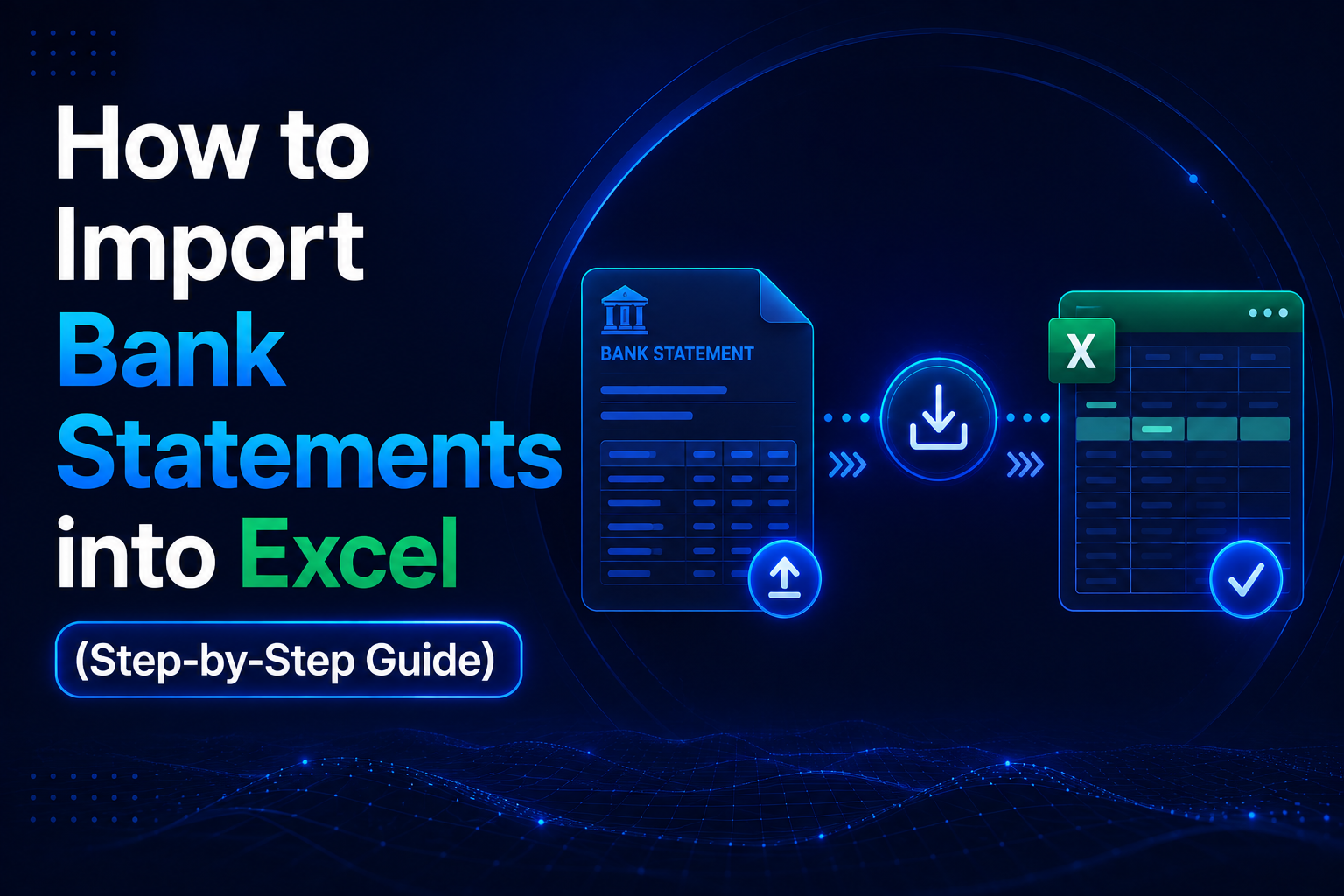
Bank statements contain every transaction your account has ever processed — debits, credits, balances, narrations — but they arrive locked inside a PDF or as a raw CSV that Excel cannot always read cleanly. Importing your bank statement into Excel is the first step to financial clarity. Every analysis, reconciliation, ITR filing, GST audit, and expense report starts here.
Whether your bank delivers statements as a PDF, a CSV download, or a bank-branded Excel file, the right import method depends on the format and your workflow. This guide walks you through all three methods — manual entry, copy-paste from PDF, and AI-powered conversion — along with the common pitfalls to avoid and tips that save hours each month.
Why Import Bank Statements into Excel?
Excel is the default tool for financial data work in India and globally. Whether you are a salaried professional reconciling your credit card bills, a freelancer tracking business expenses, or a chartered accountant managing statements for 50 clients, the need is the same: structured, searchable, filterable transaction data in a spreadsheet.
Here is why importing your bank statement into Excel is worth doing properly:
- Income tax filing: ITR forms require you to report income and deductions backed by bank records. A structured Excel sheet makes it trivial to calculate totals, filter by category, and verify every rupee.
- GST reconciliation: Matching GSTR-2B purchase data against your bank credits requires being able to search, filter, and cross-reference transactions quickly — impossible with a PDF.
- Expense tracking and budgeting: Grouping transactions by category (rent, salaries, utilities, travel) gives you a clear picture of where money goes each month.
- Bank reconciliation: Comparing your books against bank records is a core accounting task. A clean Excel sheet makes it straightforward; a PDF makes it a nightmare.
- Cash flow analysis: Business owners need to understand inflows and outflows month by month. Pivot tables built on structured bank data give this view in seconds.
- Loan and audit documentation: Banks, NBFCs, and auditors frequently request 6–12 months of transaction data. An organised Excel file is faster to share and easier to annotate than a stack of PDFs.
Benefits of Having Bank Data in Excel
Once your bank statement data is properly structured in Excel, a wide range of analytical tools become available immediately — with no additional software required:
| Excel Feature | What You Can Do With Bank Data |
|---|---|
| AutoFilter | Instantly isolate transactions by date range, payee, or amount threshold |
| SUMIF / SUMIFS | Calculate total spending per category (e.g., all UPI payments to vendors) |
| Pivot Tables | Get month-wise income and expense summaries with two clicks |
| Conditional Formatting | Highlight large debits, negative balances, or duplicate amounts automatically |
| Charts | Visualise cash flow trends, spending patterns, or balance movement over time |
| VLOOKUP / XLOOKUP | Match transactions against an invoice list or a chart of accounts |
| Power Query | Automate monthly imports and combine 12 months of data into one table |
None of these capabilities are available in a PDF. That is the core reason every finance professional eventually migrates their bank statement data into Excel.
Three Methods to Import Bank Statements into Excel
There are three practical methods for getting bank statement data into Excel. Each has different trade-offs in speed, accuracy, and effort:
Method 1 — Manual Entry
The most basic approach: look at your PDF and type each transaction into Excel by hand. This is appropriate only for very short statements — fewer than 20 transactions — where setting up an automated workflow would take more time than the manual work itself.
Manual entry has a typical error rate of 1–3%. For financial records, even a single transposed digit can cause reconciliation failures, incorrect tax filings, and audit issues. If your statement has more than 20 rows, use one of the other methods.
Method 2 — Copy-Paste from PDF
Open your bank statement PDF in a reader, select the transaction table, copy, and paste into Excel. This is faster than manual entry but produces messy, unstructured data. Columns collapse into a single string, date formats lose their structure, and amounts appear as text with embedded commas or currency symbols.
Copy-paste works only for text-based (searchable) PDFs where you can actually select and copy text. It fails completely for scanned PDFs — image-only files where the text is a photograph. Even with searchable PDFs, you will spend significant time cleaning up the pasted data before it is usable.
Method 3 — AI Converter (StatementHub) — Recommended
StatementHub is a browser-based AI converter that reads your bank statement PDF and produces a clean, analysis-ready Excel file in seconds. The entire conversion happens locally in your browser using AI that understands 50+ Indian bank formats — your statement data never leaves your device.
No upload, no login, no risk. StatementHub processes your PDF entirely within your browser. Your financial data is never sent to any server. You get a clean .xlsx file with proper column headers, consistent date formats, and amounts ready for formulas — without any cleanup.
Step-by-Step Guide for Each Method
How to Import a CSV Bank Statement into Excel
Most Indian banks (HDFC, ICICI, Axis, Kotak) allow you to download your statement as a CSV file from net banking. Do not double-click the CSV to open it — that triggers Excel auto-detection which frequently corrupts data. Use the Data Import wizard instead:
- Open a new, blank workbook in Excel.
- Go to Data > Get Data > From File > From Text/CSV.
- Browse to your downloaded CSV file and click Import.
- In the preview dialog, set Data Type Detection to Do not detect data types. This prevents Excel from auto-converting account numbers and reference codes.
- Click Transform Data to open Power Query editor.
- Select the date column, right-click, choose Change Type > Date. Select amount columns and change type to Decimal Number.
- Click Close & Load. Your CSV data is now in a structured Excel table.
Always verify the row count after importing. Open your PDF statement and count the total number of transactions. The Excel row count must match exactly. A mismatch means some rows were lost during import — usually a delimiter detection error.
How to Import a PDF Bank Statement Using Copy-Paste
Use this method only if you have a searchable PDF and a small number of transactions. For large statements, use StatementHub instead.
- Open your bank statement PDF in Adobe Acrobat Reader or any PDF viewer.
- Click Edit > Select All (or
Ctrl+A) to select all text on the current page. - Copy with
Ctrl+C. - Open Excel, click on cell A1, and paste with
Ctrl+V. - The data will likely appear in a single column. Go to Data > Text to Columns.
- Choose Delimited, click Next, and select the appropriate delimiter (usually space or tab).
- Preview the column separation and click Finish.
- Manually add header row: Date, Narration, Debit, Credit, Balance.
- Clean up any merged rows, extra spaces, and formatting issues manually.
This method rarely produces clean output. Multi-line narrations, inconsistent spacing, and page header repetitions make the paste messy. Budget 30–60 minutes of cleanup for a 3-month statement using this approach.
How to Import a PDF Bank Statement Using StatementHub (AI Method)
This is the fastest and most accurate method for PDF bank statements. StatementHub uses AI trained specifically on Indian bank statement formats to extract and structure your data correctly:
- Open statementhub.in in Chrome, Firefox, or Safari.
- Drag and drop your bank statement PDF onto the converter, or click to browse and select the file.
- If your PDF is password-protected, enter the password when prompted. StatementHub decrypts it locally — the password is never transmitted.
- The AI processes your PDF and shows a preview of extracted transactions within seconds.
- Review the preview to confirm transactions look correct. Check a few amounts and dates against the original PDF.
- Click Download Excel to save the
.xlsxfile to your device. - Open the downloaded file in Excel. Your data is ready — clean columns, proper date format, amounts as numbers, ready for formulas and pivot tables.
StatementHub supports SBI, HDFC, ICICI, Axis Bank, Kotak Mahindra, PNB, Canara Bank, Bank of Baroda, IndusInd, Yes Bank, and 40+ other Indian bank formats. It handles multi-page statements, password-protected PDFs, and statements with multi-line narrations — all automatically.
Common Problems and How to Fix Them
Even with the correct import method, certain formatting problems are common with bank statement data in Excel. Here are the most frequent issues and their solutions:
| Problem | Symptom | Fix |
|---|---|---|
| Dates stored as text | Dates are left-aligned; sorting does not work chronologically | Use =DATEVALUE(A2) to convert, paste as values, then format as Date |
| Amounts with commas | SUM() returns 0 on the amount column | Find & Replace: find comma (,), replace with nothing. Then Data > Text to Columns to force number parsing |
| Rupee symbol embedded | Amount shows as ₹1,234.56 — treated as text | Find & Replace: find ₹, replace with nothing. Then convert column to number |
| Account numbers in scientific notation | Reference numbers appear as 1.23E+12 | Re-import that column with type set to Text; or select column and format as Number with 0 decimal places |
| Missing transactions | Row count is less than the original statement | Re-import with correct delimiter; check for multi-line narrations collapsing multiple rows |
| Merged header cells | Cannot apply AutoFilter or sort columns properly | Select all (Ctrl+A), go to Home > Clear > Clear Formats, then re-add headers manually |
| Duplicate header rows | Bank header row repeats on every page of the import | Use AutoFilter to filter for the header text and delete those rows |
Tips for Better Results
These best practices will save you time and prevent errors across every bank statement import you do:
- Always verify the row count. Before starting any analysis, count transactions in the original PDF and confirm the Excel row count matches. This five-second check prevents hours of downstream confusion.
- Import as text first, then convert types. When using the CSV import wizard, start with all columns as text. Then selectively change the date and amount columns to their proper types in Power Query. This prevents silent data corruption on account numbers and reference codes.
- Use Power Query for monthly recurring imports. Set up the import once with the correct column types and transformations. Next month, drop the new statement file in the same folder and click Refresh — Power Query re-runs all your steps automatically.
- Keep the original PDF alongside the Excel file. The PDF is the audit-trail document. The Excel file is your working copy. Store both together and never delete the PDF after converting.
- Add a Source column. When combining multiple months or multiple accounts, add a column identifying the source (e.g., "HDFC Savings — Jan 2026"). This makes filtering by account or period straightforward.
- Save your cleaned workbook as a template. After setting up your import steps, cleaning steps, and pivot table layout, save the workbook as an Excel Template (
.xltx). Each new month, open the template rather than starting from scratch. - Use SUMIF to auto-categorise. Create a reference table that maps narration keywords to categories (e.g., "SWIGGY" → "Food", "BSNL" → "Utilities"). Then use
=SUMIF()to automatically total spending per category based on the narration column.
Frequently Asked Questions
Can I import a bank statement directly into Excel without converting it?
Yes, if your bank provides a CSV or XLS/XLSX download option. Log in to your net banking portal, navigate to the statement section, and look for download format options. If CSV or Excel is available, use the Data Import wizard in Excel rather than double-clicking the file. If only PDF is available, you will need to convert it first — either with the copy-paste method or with a tool like StatementHub.
How do I import a PDF bank statement to Excel?
The most reliable method is to use an AI converter like StatementHub. Upload (or drag and drop) your PDF at statementhub.in, let the AI extract the transactions, and download the result as an Excel file. The alternative — copying text from the PDF and pasting into Excel — works for short, simple statements but requires extensive cleanup for longer or more complex ones.
Why do my amounts show as text (left-aligned) after importing?
This happens when the amount values contain non-numeric characters — typically a currency symbol (₹), thousands separators (commas), or leading/trailing spaces. Use Find & Replace to remove the ₹ symbol and commas from the column. Then select the column and use Data > Text to Columns with Finished to force Excel to re-parse the values as numbers. Finally, format the column as Number.
Can I import a password-protected bank statement PDF into Excel?
Yes. StatementHub supports password-protected PDFs. When you load the file, it prompts you for the password, decrypts it locally in your browser, and proceeds with extraction. The password is never transmitted to any server. Alternatively, you can use Adobe Acrobat to remove the password first and then use any other method — but this requires a paid Acrobat licence.
How do I combine multiple months of bank statements in Excel?
The cleanest method is Power Query's folder import: place all monthly CSV or Excel files in one folder, then use Data > Get Data > From File > From Folder to combine them automatically. When a new month arrives, add the file to the folder and click Refresh. Alternatively, import each month separately, add a "Month" column to each, and paste them sequentially into a single "All Transactions" sheet.
Which Indian banks are supported for PDF to Excel conversion?
StatementHub supports 50+ Indian bank formats including SBI, HDFC Bank, ICICI Bank, Axis Bank, Kotak Mahindra Bank, Punjab National Bank, Canara Bank, Bank of Baroda, Bank of India, IndusInd Bank, Yes Bank, Federal Bank, South Indian Bank, IDFC First Bank, RBL Bank, and major cooperative and regional rural banks. The AI is trained on actual statement layouts from each bank, so it handles multi-column formats, multi-line narrations, and bank-specific date formats automatically.
Is it safe to use an online tool to convert my bank statement?
It depends entirely on how the tool processes your file. Many online converters upload your PDF to a remote server for processing — this is a significant privacy and security risk for financial documents. StatementHub is different: it processes your PDF entirely within your browser using client-side AI. Your statement data is never uploaded, transmitted, or stored anywhere. You can verify this by turning off your internet connection after the page loads and running the conversion — it still works.
What is the best Excel formula to analyse bank statement data?
For most bank statement analysis tasks, these formulas cover the majority of use cases: =SUMIF(narration_col,"*SWIGGY*",debit_col) to total spending at a specific merchant; =COUNTIFS(date_col,">="&DATE(2026,1,1),date_col,"<"&DATE(2026,2,1)) to count January transactions; and =SUMPRODUCT((MONTH(date_col)=3)*debit_col) to total March debits. For ongoing monthly reporting, a Pivot Table is far more efficient than manual formulas — set it up once and refresh it each month.
Conclusion
Importing bank statements into Excel does not have to be a painful, error-prone process. With the right method matched to your file format — the Data Import wizard for CSVs, copy-paste for small text-based PDFs, or StatementHub for any PDF — you can have clean, analysis-ready data in Excel within minutes.
The one-time investment of learning Power Query for recurring imports and building a template workbook pays for itself in hours saved every month. And once your data is in Excel, the full power of the world's most widely used financial analysis tool is at your fingertips: pivot tables, SUMIF, charts, macros, and everything else that turns raw transaction data into actionable financial insight.
Ready to try it? Visit statementhub.in and convert your bank statement PDF to Excel in seconds — free, private, and no login required. Works with 50+ Indian banks including SBI, HDFC, ICICI, Axis, and Kotak.