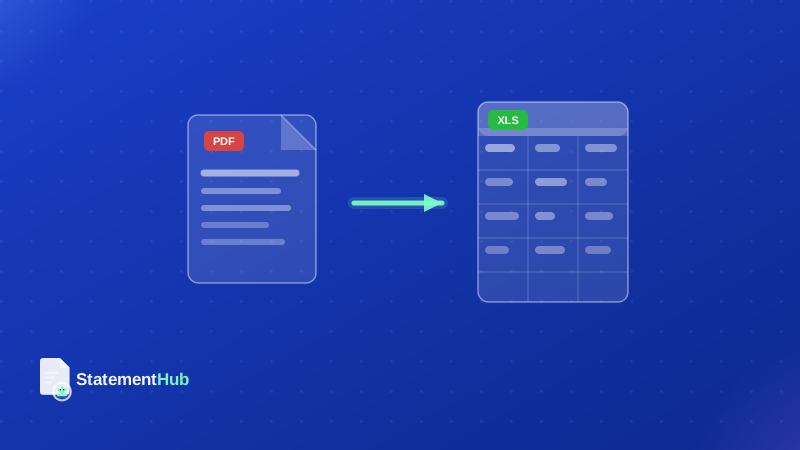
When you log into your net banking portal to download a statement, you are typically offered at least two formats: PDF and sometimes CSV (Comma Separated Values). Many users instinctively choose PDF because it looks professional and familiar. But for anyone who needs to work with the data — to reconcile, analyse, or feed into accounting software — the choice of format has real consequences.
This article breaks down the practical differences between PDF and CSV bank statements, explains when each format is appropriate, and discusses the often-overlooked quality problems with bank-issued CSV files that make them less reliable than they appear.
What Is a PDF Bank Statement?
A PDF bank statement is a visual representation of your account activity, formatted for printing or reading. Banks invest significant effort in making PDF statements look official: they include the bank logo, branch address, account holder details, IFSC code, and usually a summary section at the top showing opening balance, total debits, total credits, and closing balance.
PDF statements are often digitally signed using a certificate issued by the bank, which makes them legally valid as documents. Courts, banks, embassies, and government agencies accept PDF bank statements as proof of financial standing precisely because the digital signature confirms the document has not been altered since it was issued.
The limitation of PDFs is that the data inside them is not structured in a machine-readable way. Even though the statement contains a table of transactions, the PDF format encodes that table as positioned text on a canvas, not as rows and columns in a data structure.
What Is a CSV Bank Statement?
A CSV file is a plain text file where each row represents a record (in this case, a transaction) and the fields within each row are separated by commas (or sometimes semicolons or tabs). When you open a CSV in Excel, it automatically parses these delimiters and displays the data in a familiar spreadsheet grid.
CSV files are designed for data interchange. They are compact, universally supported by spreadsheet software, accounting packages, and databases, and trivially easy to parse with code. If your bank offers a CSV download, it represents the bank’s internal transaction data with no conversion layer in between — which sounds ideal.
When to Use PDF
Choose PDF when the statement needs to serve as an official document. Common scenarios include:
- Submitting proof of income or financial standing to a bank, NBFC, or housing finance company for a loan application
- Providing financial records to a chartered accountant for audit or tax filing
- Applying for a visa — most embassies specify “bank statements on official letterhead” which effectively means PDF
- Court proceedings or legal disputes where document authenticity must be demonstrable
- Submitting KYC documents to financial institutions, insurance companies, or brokers
In all these cases, the PDF’s visual format and potential digital signature make it the right choice. A CSV file has no visual identity and no authentication mechanism, so it would not be accepted as an official document.
When to Use CSV
Choose CSV when you need to work with the data programmatically or in a spreadsheet. If you are writing a script to categorise transactions, importing data into Tally, QuickBooks, Zoho Books, or another accounting package, or building a cash flow analysis in Excel, CSV is the right starting point — provided it is clean.
CSV files can be imported directly into most accounting software without any conversion step. If your bank offers CSV and the format is consistent and clean, it is generally preferable to converting from PDF for data analysis purposes.
Rule of thumb: Use PDF when you need to present your statement. Use CSV (or converted Excel) when you need to analyse your statement.
The Hidden Problems with Bank-Issued CSVs
Here is the inconvenient truth about bank CSV downloads: they are often poorly formatted. Indian banks, in particular, have a track record of issuing CSVs that cause problems when opened in Excel. Some of the most common issues:
Date Auto-Conversion
Excel automatically converts strings that look like dates into date values when opening a CSV. A transaction narration that contains a date string — like a reference to “invoice dated 05-06-26” — can get corrupted. Similarly, amounts with more than 12 significant digits (which can occur with certain transaction reference numbers) get converted to scientific notation and lose precision.
Encoding Issues
Some bank CSVs use Windows-1252 encoding rather than UTF-8. When opened in Excel on a system configured for a different locale, special characters like the rupee symbol (₹) may appear as garbled text. Transaction narrations with Hindi characters (used by some rural and cooperative banks) are particularly prone to this.
Missing Summary Information
CSV files typically contain only raw transaction rows. They do not include the account holder name, account number, branch details, or statement period header that appear in the PDF. If you are comparing CSVs across multiple months or accounts, this makes it harder to track which file belongs to which account.
No Digital Signature
CSV files have no authentication mechanism. A CSV downloaded from net banking looks identical to a CSV that someone has edited in Notepad. This is why CSVs are not accepted as official financial documents by banks, courts, or government agencies.
Which Indian Banks Offer CSV Download?
The availability of CSV download varies significantly across Indian banks. Here is the current state as of mid-2026:
| Bank | CSV Download? | Notes |
|---|---|---|
| HDFC Bank | Yes | Available in net banking under account statements |
| ICICI Bank | Yes | Available, sometimes labelled as Excel download |
| Axis Bank | Yes | Available with date range filter |
| SBI | Partial | Available via YONO but limited to 6 months |
| Kotak Mahindra | Yes | Clean format, recommended over PDF for data use |
| PNB | No | PDF only; use StatementHub to convert |
| Bank of Baroda | No | PDF only |
| Canara Bank | No | PDF only |
| Union Bank | Partial | Available for some account types |
| IndusInd Bank | Yes | Available with good formatting |
The Best Workflow: PDF as Source of Truth, Excel for Analysis
For most Indian businesses and accountants, the most reliable workflow is: download the PDF for archival and official purposes, then convert it to Excel using StatementHub for working with the data. This gives you the best of both worlds: an authenticated source document and a clean, analysis-ready spreadsheet.
Keep the original PDFs in a folder organised by bank, account, and month. Use the StatementHub-generated Excel files as working documents for reconciliation, GST calculations, or cash flow analysis. When you need to share the statement officially, share the PDF. When you need to work with the numbers, use the Excel.
If your bank offers CSV, you can certainly use it as an alternative to converting the PDF — but always open it using Excel’s Data Import wizard (Data > From Text/CSV) rather than double-clicking the file. The import wizard lets you specify the data type of each column, preventing the auto-conversion issues described above.
Final Recommendation
PDF is the format you need when the statement must serve as an official document. For data work, CSV is theoretically better but often has quality issues in practice. Converting a PDF to Excel using a trusted local tool like StatementHub often produces cleaner, more consistent output than working with a bank-issued CSV — particularly for banks like SBI, PNB, and Bank of Baroda that do not offer CSV downloads at all.
Recommended: Always keep the PDF as your primary record. Convert to Excel only for analysis, and use StatementHub for the conversion so no sensitive data leaves your device.